 EOMeasy
Exporting surfaces from PointStudio
EOMeasy prepares a folder, a macro runs against your own PointStudio project, and EOMeasy assigns the results. There is no add-in to install, but PointStudio does need Maptek's Python SDK once per machine. Set that up first.
eom_export_maptek.py from an Any Python Script component in the Workflow Editor, then click Auto-assign from folder back in EOMeasy. The console names every object it read before it writes anything.One-time setup: install the Maptek Python SDK
PointStudio keeps its surfaces and boundaries in its own project, and the only thing that can read that project is Maptek's Python SDK, mapteksdk. It does not ship installed, and it needs a Maptek Extend licence. Vulcan needs none of this.
Go to Preferences, then Workbench Preferences, then Python in the left-hand list. It is under Preferences, not under the Maptek Extend ribbon.
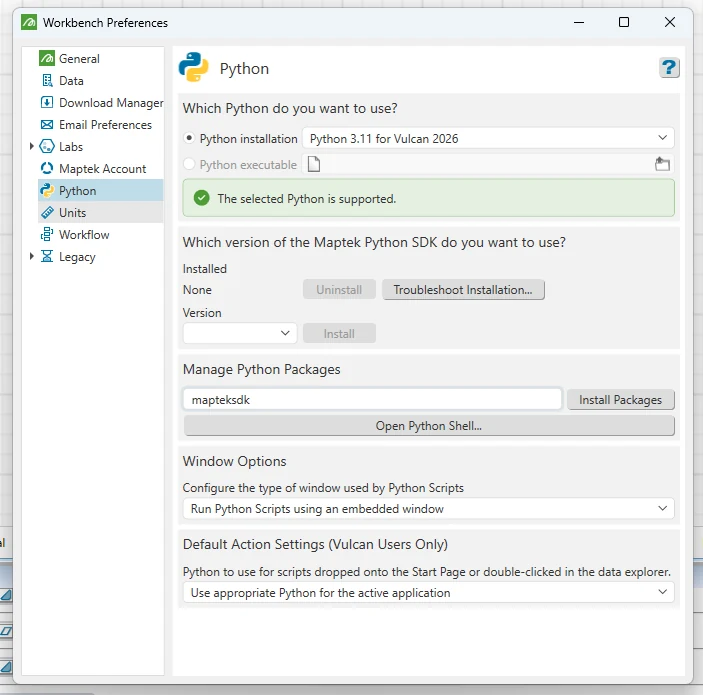
- Under Which Python do you want to use?, leave Python installation selected. Workbench confirms with The selected Python is supported.
- Under Which version of the Maptek Python SDK do you want to use?, if Installed reads None, pick a Version and press Install.
- If that does not install, the Manage Python Packages field below does the same job: enter
mapteksdkand press Install Packages.
That is the whole setup. You never point the macro at an interpreter: it finds the one carrying the SDK and re-runs itself there.
Step 1: Prepare the export folder (in EOMeasy)
Open the period and click Prepare export folder, with the package set to Maptek (Vulcan / PointStudio). One macro serves both. EOMeasy drops two files into the folder you pick:
eom-export-manifest.json: the list of volumes and the slug (key) for eacheom_export_maptek.py: the export macro, self-contained in one file
Step 2: Name your objects and run the macro (in PointStudio)
Name each object in the Project Explorer <KEY>-START, <KEY>-END and <KEY>-BDY, where KEY is the volume's slug from the manifest. PIT1_START, PIT1_END and PIT1_BDY all match the volume keyed pit1. Matching ignores case, spaces and the separator, and -BOUNDARY works as well as -BDY. It does not matter which container they sit in.
With the project open, run eom_export_maptek.py. It writes <key>__start.obj, <key>__end.obj and <key>__boundary.dxf next to the manifest, prints which objects it read, and reports anything it could not fill.
A large scan surface takes a while to write. That is the surface size, not a stall.
Step 3: Auto-assign (back in EOMeasy)
Return to EOMeasy and click Auto-assign from folder. It fills in each volume's start surface, end surface and boundary. You are ready to run the period.
If the macro says it cannot read the project
PointStudio shares its Python interpreter with Vulcan but not its data. If the SDK is missing, the only reader left would be the Vulcan one, which reads the open Vulcan design database instead of your PointStudio project. Rather than export a similarly named object from the wrong dataset, the macro stops and tells you which interpreter to install mapteksdk into. Install it and run again.
If you cannot install the SDK
Without an Extend licence the macro cannot reach a PointStudio project at all. Export from PointStudio's own export menu instead, into the same folder, naming each file for the volume it belongs to, then use Auto-assign from folder as usual:
pit1__start.obj,pit1__end.obj,pit1__boundary.dxf
Note the double underscore. The key is the volume's slug from the manifest, casing does not matter, and surfaces can be OBJ, DXF, STL or LandXML. The macro prints this list, filled in with your period's actual keys, whenever it has to stop.
If something did not match
If a volume is left unassigned, the object name probably did not match <KEY>-<ROLE>. The macro prints MISSING <key> <role> along with the objects whose names contain that key, so a near miss is visible in the output. Fix the name and run it again. See Troubleshooting for the full list.